TransMac
Help
TransMac
Help System Requirements: Any version of Windows 11, 10, 8, 7 or Vista.
Features:
Apple File System (APFS) volume read support. Open Mac APFS/HFS/HFS+ format disk drives, flash drives, CD/DVD/Blu-ray media. Open Mac APFS/HFS/HFS+ format disk image files (DMG, DMGpart, sparsebundle and sparseimage). Encrypted disk image support (full version only). Copy files to Mac HFS+ disks and DMG images. Format as HFS+ for Mac. Save images of disks and flash drives. Burn DMG and ISO files to disks and flash drives. Create, compress, expand and split DMG files. Built in burner functionality to burn ISO and DMG files directly to CD/DVD/Blu-Ray. Read Mac multisession and hybrid CDs. View partition layout of drives and disk images.
WARNING: After formatting or attaching a Mac disk, Windows may display
a popup dialog box offering to format it. DO NOT SELECT FORMAT OR DATA ON THE DRIVE WILL BE LOST!
Windows does this because it does not recognize Mac HFS/APFS format disks. Just cancel
that window without formatting and run TransMac.
Click the drive in the left pane of the TransMac window. You can then browse
the drive and copy files from within TransMac.
Below are instructions for performing some common operations in TransMac.
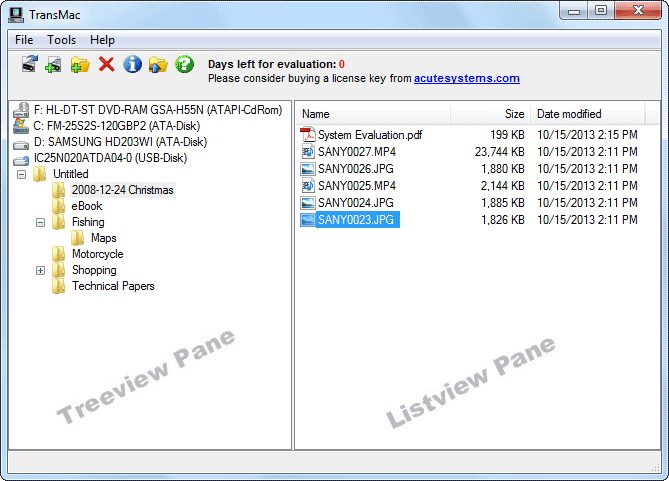
Navigation Tips:
Copying files from a Mac volume to the PC:TransMac works like File Explorer. Select disks, disk images and folders in the treeview pane on the left. Contents of the selected treeview item are displayed in the listview pane on the right. Most operations can be performed with the right-click context menus. Treeview navigation:
Listview navigation:
- Right click on treeview items or in an open area to display a pop-up menu of valid operations.
- Click or use up and down arrow keys to traverse the folder tree.
- If a drive has been added since TransMac was run, right-click in an open area and select "Refresh Drive List".
- Check the partition info and size of a disk by right-clicking and selecting "Properties".
- Check the size of a volume or container by right-clicking and selecting "Properties".
- Right click on listview items or in an open area to display a pop-up menu of valid operations.
- Press letter keys repeatedly to cycle through items starting with that letter.
- Press Ctrl-A to select all items in a list box.
- Select a group of items by clicking on the first item, scrolling to the last item, then holding down the "Shift" key while clicking on the last item.
- Select non-consecutive individual items by holding the "Ctrl" key while clicking on them.
Copying files from the PC to a Mac volume:Select a drive in the treeview pane and click on a Mac volume. Browse the Mac volume for the files to be copied. Drag them from the listview pane to a File Explorer window or other drop target. (An alternate way is to right-click the items in the listview pane and select "Copy to") NOTE: To copy large files it is best to use the "Copy to" method. Drag and drop has to copy to the boot disk first before moving files to the destination.
Creating a folder on a Mac volume:Select a drive in the treeview pane and click on a Mac volume. Browse to where files are to be copied. Drag files from a File Explorer window or other drag source to the listview pane. (An alternate way is to right-click an open area in the listview pane and select "Copy here")
Deleting files/folders on a Mac volume:Open a volume and browse to where the new folder is to be created. Right-click an open area in the listview pane and select "New Folder". (An alternate way is to press the button)
Enter the name of the folder and press OK.
Renaming files on a Mac volume:Open a volume and browse until files/folders to be deleted are shown in listview pane. Right-click and select "Delete". (An alternate way is to press the button)
CAUTION: Deleting a folder will delete all sub folders inside it as well.
Previewing files on a Mac volume:Open a volume and browse until files/folders to be renamed are shown in listview pane. Right-click and select "Rename". (An alternate way is to select the file/folder then click the name in the listview) Edit the name in place then press Enter or click outside the name. Press escape (Esc) to cancel and revert to the original name.
Opening a disk image:Open a volume and browse for the file to preview in the listview. Double-click the item to preview. (An alternate way is to right-click and select "Open") The file will be opened using the PC application associated with the file type or extension. To open a file in notepad, right-click and select "Open as Text". To open with a different application, right-click and select "Open with". You will be prompted to select an application. NOTE: When opening a file from a Mac disk, TransMac copies it to a temporary folder on the PC. Any changes to the file will NOT be written to the Mac disk.
Creating a disk image:By default the TransMac installation program associates Mac disk image files (DMG and .sparseimage extensions) with TransMac so double-clicking those files should open them in TransMac. To explicitly open disk images with other extensions select "Open Disk Image" from the file menu or right-click an open area of the treeview pane and select "Open Disk Image". The disk image file should now show up in the treeview pane. Clicking the file should open it if it contains a valid Mac volume.
Compressing an uncompressed DMG disk image:Select "New Disk Image" from the file menu or right-click an open area of the treeview pane and select "New Disk Image". Enter the desired volume label. Enter a volume size in megabytes. Press OK and you will be prompted to browse for the destination folder and file name.
Expanding a compressed DMG disk image (or convert to iso):Right-click the DMG file in the treeview pane and select "Compress". Enter the destination file name in the "Save As" dialog.
Splitting a compressed DMG disk image:Right-click the DMG file in the treeview pane and select "Expand". Enter the destination file name in the "Save As" dialog. NOTE: Some types of DMG compression like bzip may take a long time to expand.
Formatting a disk for the Mac:Right-click the DMG file in the treeview pane and select "Split". Note: Only compressed DMG files can be split. Enter the number of segments. You will be prompted for the destination file name. The first file has a DMG extension. The other files have the extension .NNNDMGpart where NNN is a sequence number (002, 003, 004, etc.).
Burning a DMG or ISO file to USB drive using restore:Right-click a drive in the treeview pane and select "Format Disk for Mac". (If this is missing from the menu, the disk is read only. See settings for fix.) You may be prompted to restart TransMac as administrator. Enter the desired volume label and press OK. CAUTION: Make sure you want to format the disk. Any existing data on the disk will be destroyed.
Saving an image of a disk:Right-click a drive in the treeview pane and select "Restore with Disk Image". (If this is missing from the menu, the disk is read only. See settings for fix.) Press the "..." button to browse for the disk image to be written. Valid compressed DMG files will automatically be uncompressed as they are written. New in version 15.0 is the option to enlarge the DMG volume to the drive size. This option will display after the DMG is selected only for GUID/GPT or Apple partition maps that have a single HFS+ partition at the end of the map. CAUTION: Make sure you really want to over write the disk. Any existing data on the disk will be destroyed. NOTE: Burning a large DMG/ISO file to a flash drive may take a long time. Flash drives are optimized for reading. The write operation is usually much slower.
Burning a DMG file to CD or DVD:Right-click a drive in the treeview pane and select "Save Image of Disk". Select the location for the saved image file.
Burning an ISO image to CD or DVD:Select "Burn CD/DVD" from the "Tools" menu or right-click the DMG image in the treeview and select "Burn to CD/DVD". Select the burn drive. Press the "..." button to browse for the DMG file to be burned. Click OK to start the burn process. NOTE: Compressed DMG files will add time. You may be able to save time by expanding ahead of time (see Expanding DMG above).
Creating a Mac CD or DVD:Since TransMac has an internal burning functionality, it can burn any ISO or CD/DVD image file. Select "Burn CD/DVD" from the "Tools" menu. Select the burn drive. Press the "..." button to browse for the ISO file to be burned. Click OK to start the burn process.
Erasing a rewritable CD or DVD:Follow the directions for "Creating a disk image" above. Be sure to select DMG for the image type. You can save burn time by creating a smaller volume, but it can not be enlarged once it is created. The volume size should not be greater than the capacity of the target media. A CD-R has a limit of about 650-700 MB. A DVD-R has a limit around 4.7GB. To use the full capacity of the media select the drive in the "Get size from CD media" box to read the size from inserted media. Open the disk image and copy the files and folders you want on to be on the CD. Right-click the DMG in the treeview pane and select "Burn to CD/DVD". (An alternate way is to select "Burn CD/DVD" from the "Tools" menu) Select the burn drive. Press the "..." button to browse for the DMG file to be burned. Click OK to start the burn process. NOTE: If TransMac's CD burning capabilities are not working with your drive, try selecting Use alternate burning method in the Tools/Settings menu under the DVD/CD Burning tab.
Select "Erase CD/DVD" from the "Tools" menu. Select the burn drive. Click OK to start the erase process.
Sifangdscpm Exclusive
For ongoing TV series or serialized content, Exclusive members often get priority.
Most “sifangdscpm exclusive” content lives on:
For portfolio managers, the exclusive tools within SifangDSCPM offer automated, AI-driven rebalancing. If the volatility index crosses a threshold, the protocol automatically shifts exposure between on-chain assets, stablecoins, and exclusive NFT collateral, all without gas fee spikes due to priority batching.
Given the private nature of this keyword, you cannot simply Google a direct download link—at least not one that is safe or functional. Here are the legitimate pathways:
Exclusive memberships often allow for concurrent streaming.
Note: If "sifangdscpm" refers to a specific software tool, file format, or industrial product (e.g., a specialized controller or DSCPM protocol) rather than a streaming service, please provide a bit more context about the industry (e.g., "manufacturing," "software development," or "file management") so I can give you a more technically precise answer.
If you are looking for high-quality, exclusive essay writing services, the market offers several options with unique features:
Exclusive-Paper.com: Focuses on a writing process monitoring system, offering a "full history" to ensure the work is 100% human-written and original. They provide free plagiarism reports and ensure the paper is not available anywhere else.
SpecialEssays.com: Offers a custom essay writing service that includes an affiliate program where referrals earn bonuses, allowing for lower-cost future orders, as well as exclusive discounts.
EssayShark: Operates on a bidding system where clients can view samples of a writer's work before hiring them. Key Considerations for Exclusive Content
Quality & Originality: Services claiming "exclusive" content often prioritize unique research, proper citation, and strict anti-plagiarism protocols.
Human-Written Guarantee: In the era of AI, many premium services explicitly guarantee that their papers are written by professional human writers. sifangdscpm exclusive
Originality Reports: Trustworthy services will offer complimentary, detailed plagiarism detection reports. If you'd like, I can: Tell you what to look for in a reputable essay service Explain how to use free tools to check for originality
Compare pricing structures if you have specific budgets in mind Let me know how I can help you move forward. If you'd like, I can: Tell you what to look for in a reputable essay service Explain how to use free tools to check for originality
Compare pricing structures if you have specific budgets in mind Let me know how I can help you move forward. Commonreading | Student Essay Contest - Shepherd University
This piece focuses on the intersection of urban utility and premium craftsmanship, designed for a high-intensity lifestyle. The Silhouette: Modular Tech-Shell
Material: A triple-layered Gore-Tex Pro body with a matte "Carbon Dust" finish.
Feature: Removable "Sifang" utility pockets that can be repositioned via a laser-cut MOLLE system on the chest and sleeves.
Fit: Oversized, boxy cut with articulated elbows for full range of motion. Exclusive Design Elements
Branding: A tonal, heat-pressed "Sifangdscpm" logo on the back neck—visible only when hit by direct light (refractive ink).
Hardware: Custom matte-black Cobra buckles at the waist for adjustable tapering and heavy-duty YKK Aquaguard zippers.
Internal Detail: Each piece is individually numbered (e.g., 01/50) on a silk-screened interior patch. The Drop Strategy
Phase 1 (Teaser): Gritty, low-shutter-speed photography of the silhouette in an industrial warehouse setting. For ongoing TV series or serialized content, Exclusive
Phase 2 (The Reveal): A 15-second "technical breakdown" video showing the modularity of the pockets and the water-resistance of the fabric.
Phase 3 (The Drop): A password-protected "Early Access" link sent to the brand's top-tier discord or mailing list 24 hours before the public release.
Since "sifangdscpm exclusive" appears to be a highly specific or internal identifier, I’ve drafted content that fits three common scenarios where a tag like this might be used: premium membership club insider tech/data platform limited-edition product line Option 1: Premium Membership/Loyalty Program
Use this if "sifangdscpm" is a high-end community or service. Headline: Step Into the Inner Circle: SifangDSCPM Exclusive
Experience a level of access designed only for our most dedicated partners. As a SifangDSCPM Exclusive
member, you move beyond the standard interface into a world of curated benefits and priority service. Early-Bird Access:
Be the first to pilot new features before they hit the global market. Bespoke Support:
Direct line to our senior strategy team for personalized troubleshooting. Members-Only Events:
Invitations to our quarterly roundtable discussions and networking summits. Option 2: Tech/Data Platform Insights
Use this if "sifangdscpm" refers to a dashboard, software, or data suite.
Headline: Unlock Advanced Intelligence with SifangDSCPM Exclusive Configuration management
Data is only as powerful as your ability to see what others miss. The SifangDSCPM Exclusive
tier provides deep-dive analytics and proprietary datasets that go beyond the surface. Real-Time Forecasting:
Predictive modeling tools available only to Exclusive tier users. Custom Reporting:
Build and automate complex data visualizations tailored to your KPIs. Priority Processing:
Reduced latency and dedicated server bandwidth for high-volume operations. Option 3: Limited-Edition Product Launch Use this for luxury goods or "exclusive" physical drops. Headline: The SifangDSCPM Exclusive Collection Where precision meets rarity. Our
series features a limited production run of the SifangDSCPM line, crafted for those who demand uncompromising quality and unique design. Numbered Editions: Each unit is individually engraved and authenticated. Premium Materials:
Upgraded finishes and industrial-grade components not found in the standard range. Lifetime Guarantee:
An extended, comprehensive warranty that travels with the product. Need something more specific?
If "sifangdscpm" is an acronym for a specific organization or a technical term in your industry (like Supply Chain, Digital Security, or Project Management), let me know and I can sharpen the tone to match!
Dynamically installed in the natural-light-filled galleries designed by renowned American architect Steve Holl, Sifang Art Museum sifangds.com Technology Profile - BuiltWith
I’m unable to provide a guide on “sifangdscpm exclusive” because this term does not correspond to any verified software, protocol, academic subject, or legitimate technical standard I can identify. It may be a misspelling, an internal codename, a private project, or a term associated with unverified or non-public sources.
If you believe this refers to a specific tool, platform, or technical process, please provide additional context (e.g., field of use, industry, or any known documentation). I can then help clarify or offer guidance on related legitimate topics.
Platforms like Sifang often segregate their content into "Free" and "Exclusive" libraries.
Disk Images
Mac disk image files are just file systems written to a file instead of to a raw disk. The Mac can mount them so they appear just like a disk drive. There are several different types each with different options. Below are descriptions of the types TransMac supports:
Troubleshooting Guide
Symptom: Drag/drop copying from Mac to PC is slow or seems to copy twice.
Symptom: When copying from Mac to PC, the destination disk runs out of space even if there is room.
Cause: Windows drag/drop interface copies files to a temporary folder on the boot drive before moving to the destination disk.
Solution: Instead of drag and drop, use the right-click context menu "Copy to". This will copy directly to the destination disk.
Symptom: The message "No Mac HFS volumes found" appears when selecting
a Mac disk or DMG.
Cause: The disk is not Mac APFS, HFS+ or Standard HFS formatted.
Solution: TransMac can
only open Mac APFS, HFSX, HFS+ and (Old) Standard HFS format disks and
DMG files. Right-click the drive and select "Properties"
to see the partition layout and type of volume.
Symptom: An error message appears while copying files.
Cause: Windows has a legacy file path size limit
of 255 characters.
Solution1: Rename folders
with smaller names or copy inner folders separately so they fit within path
limit.
Solution2: Select the "Allow
long paths for Copy to PC" checkbox in the Settings dialog. This setting
may cause problems with legacy Windows programs that don't support long paths.
Cause: File is too large for the target
file system.
Solution: Make sure file is
less than 2GB for PC FAT16
file system and less than 4GB for PC
FAT32.
Cause: Disk has bad sectors.
Solution: Use a different
disk, reformat disk or fix disk by running a check for bad sectors on a Mac.
Symptom: Some treeview context menu items (Format, Restore, etc.) are missing.
Symptom: Some listview context menu items (Copy Here, Delete, New Folder, etc.) are grayed out.
Cause: The disk or DMG is read only.
Solution: Default in settings
is to treat fixed disks as read only. See settings to select read/write.
Solution: For hardware write
protect, turn protect switch off.
Solution: DMG files are read-only when compressed. Expand the DMG to write to it.
Cause: The volume type is APFS. Currently TransMac does not support writing APFS volumes.
Symptom: An error message appears when trying to write to a disk.
Cause: The volume format is APFS which is read only in TransMac.
Cause: The disk is write protected or read only.
Solution: For hardware write
protect, turn protect switch off.
Cause: Disk has bad sectors.
Solution: Use a different
disk, reformat disk or fix disk by running a check for bad sectors on a Mac.
Symptom: An error message appears when formatting a disk.
Cause: The disk is write protected
Solution: For hardware write
protect, turn protect switch off.
Cause: Disk has bad sectors.
Solution: Use a different
disk, reformat disk or fix disk by running a check for bad sectors on a Mac.
Symptom: A file copied from a PC is not recognized on the Mac.
Cause: The Mac does not have an application installed
that can open the file type.
Solution: Some file
types are the same on both machines (jpg, gif, mp3, etc). Some files can
be opened with the same application on the opposite platform. For example
a file created on a Mac with Quark can usually be opened on a PC if it
has the PC version of Quark installed. For some files there is no application
that will open them on the other machine.
Symptom: A file copied from a Mac is not recognized on the PC.
Cause: The PC does not have an application installed
that can open the file type.
Solution: Some file
types are the same on both machines (jpg, gif, mp3, etc). Some files can
be opened with the same application on the opposite platform. For example
a file created on a Mac with Quark can usually be opened on a PC if it
has the PC version of Quark installed. For some files there is no application
that will open them on the other machine.
Symptom: Files are corrupt after copy.
Cause: The file system on the disk is corrupt.
Solution: Use a disk checking
utility (on a Mac), or reformat the disk (if there is no needed data on it).
Symptom: After burning a DMG/iso image, the USB drive is not bootable or does not work properly.
Cause: The restore operation formats the drive with the contents of the DMG file.
The disk will only be bootable if the DMG is bootable.
Solution: Make sure the DMG file contains the exact contents
you want written to the disk. If you are having trouble creating a bootable MacOS USB installer, this PDF may help.
Symptom: Burning a DMG file to flash drive is slow.
Cause: USB flash drives are optimized for reading. Writing may be very slow especially
for older drives. Compressed DMG files are expanded on the fly which will also add to restore time.
Solution1: Use a newer/faster flash drive.
Solution2: Use a recent version of TransMac. Older versions may have a smaller buffer size.
Symptom: Get error message while or after burning disk image to DVD.
Cause: If image is a compressed DMG, it could be corrupt.
Solution: Try expanding DMG
to verify integrity.
Cause: DVD failed verification.
Solution1: Try selecting "Use
slowest burn speed" in Options/General Settings.
Solution2: Try different media
or drive.
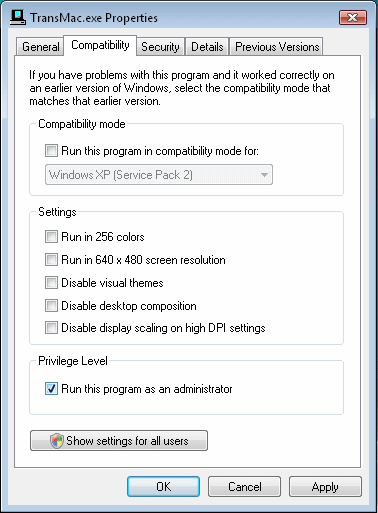
Due to extra security (UAC) in Windows 11/10/8/7/Vista, users may not be able to access disks without elevating privileges. TransMac will prompt to restart itself when this is necessary or it can be done ahead of time as shown below.
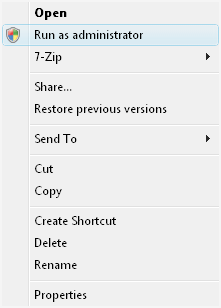
To run TransMac once as administrator, right-click on the TransMac shortcut
or icon and select "Run as administrator".
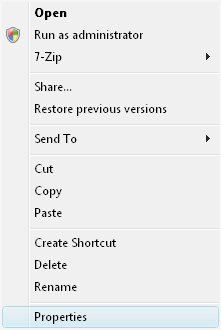
To always run TransMac as administrator, right-click on the TransMac shortcut
or icon and select "Properties".
Then tick "Run this program as an administrator" under the "Compatibility"
tab